Stop renumbering bubbles by hand.
Place keynote bubbles, build your construction notes table, and renumber the whole drawing in seconds. Built by civil engineers who got tired of doing it the slow way.


You have 40 keynote bubbles across six sheets. The client adds one note in the middle of the list.
You zoom in. Double-click. Retype. Thirty more times. You miss two, and QC catches them a week later.
What it does
-
 1
1
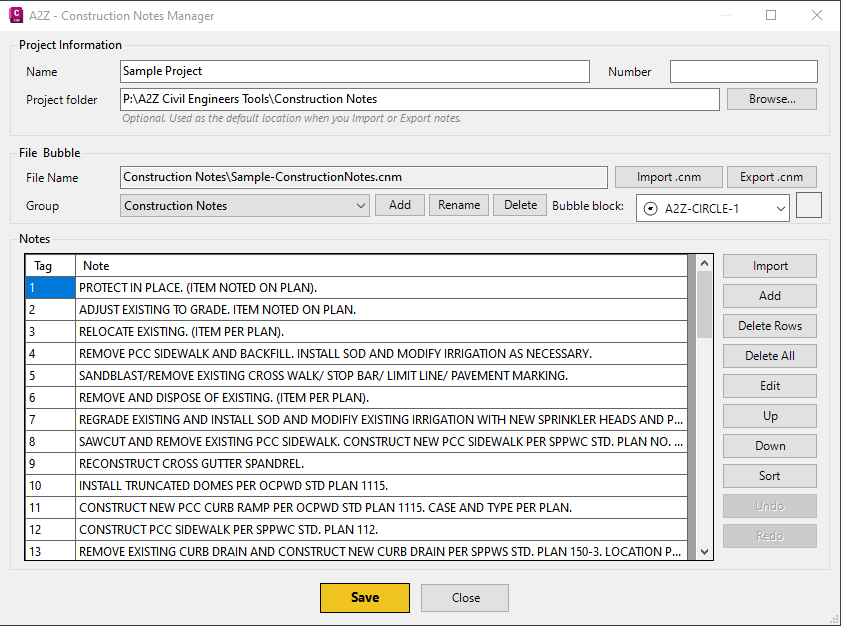
Manage your notes in one place
Create note categories, add notes, reorder them. Import from CSV, tab-delimited text, or other *.cnm files you already have. Everything lives in the drawing.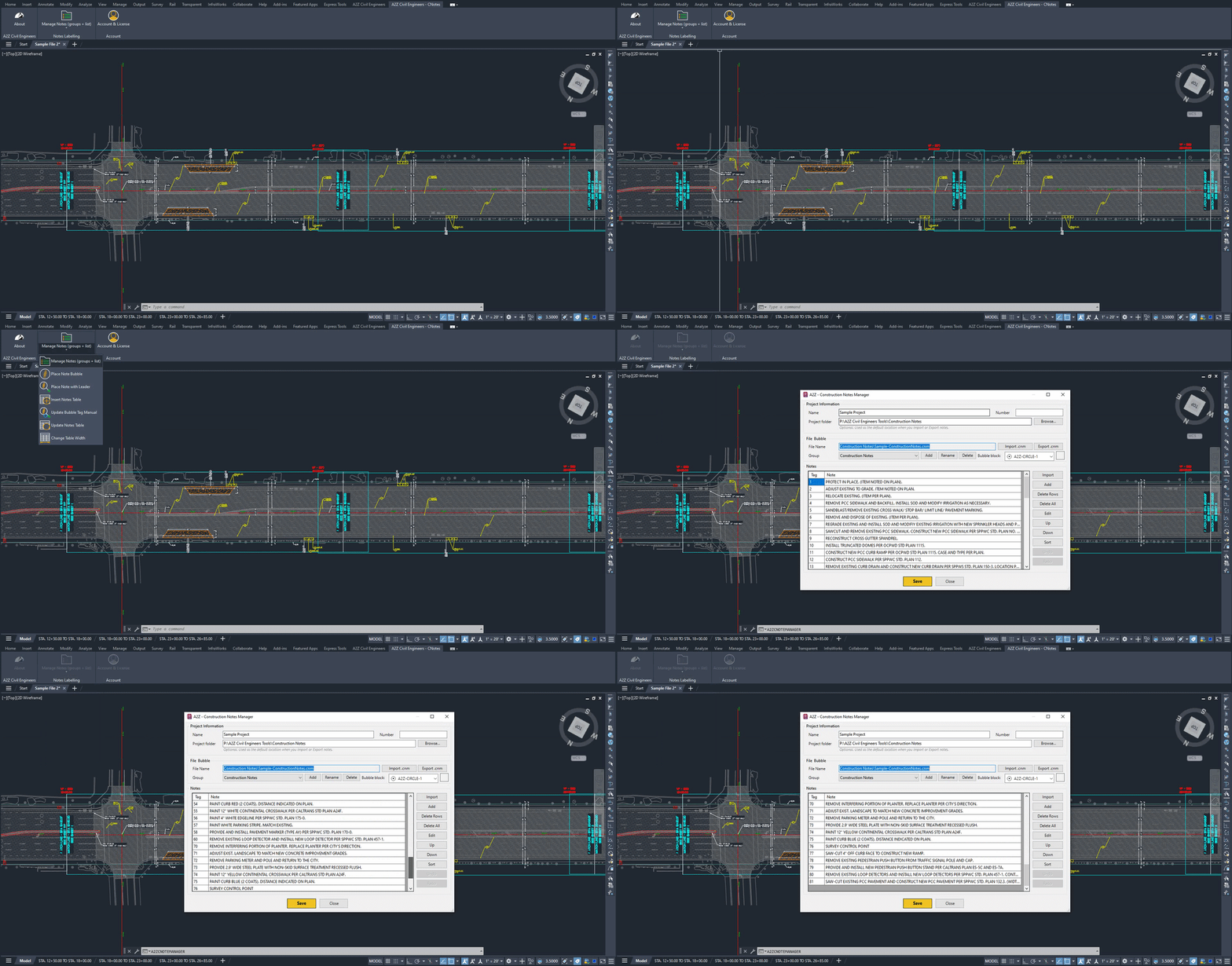
-
 2
2
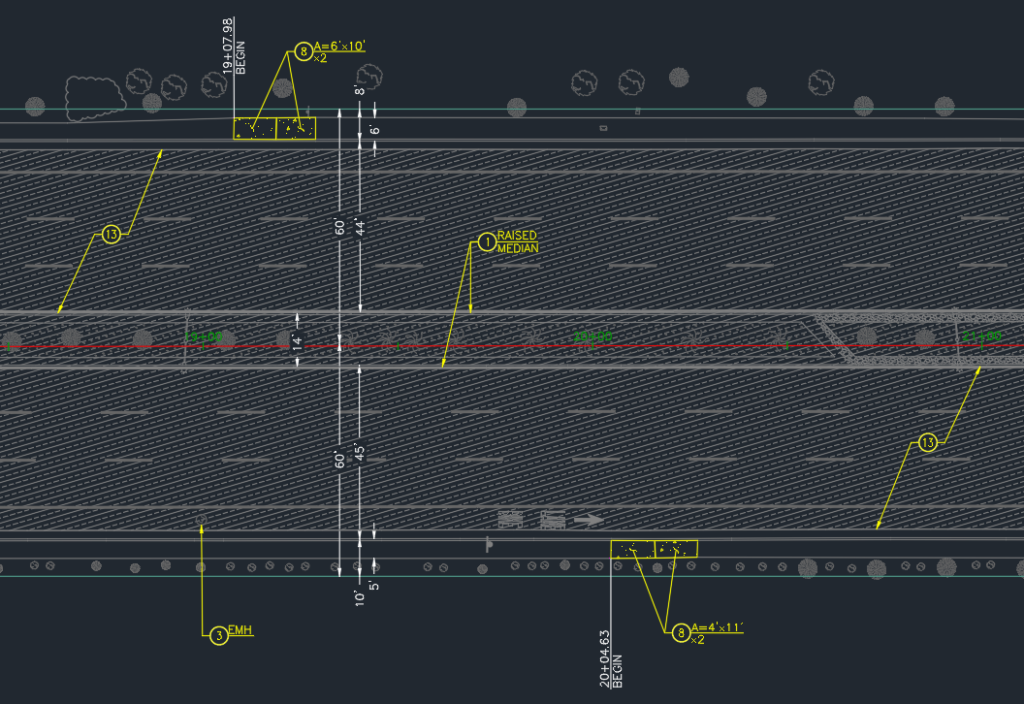
Place bubbles with one click
Pick a note, click on the drawing. The bubble lands with the right number and the right shape — circle, hexagon, diamond, pentagon, star; eleven styles in all. Need a leader? Place the bubble with a multileader pointing straight at the object.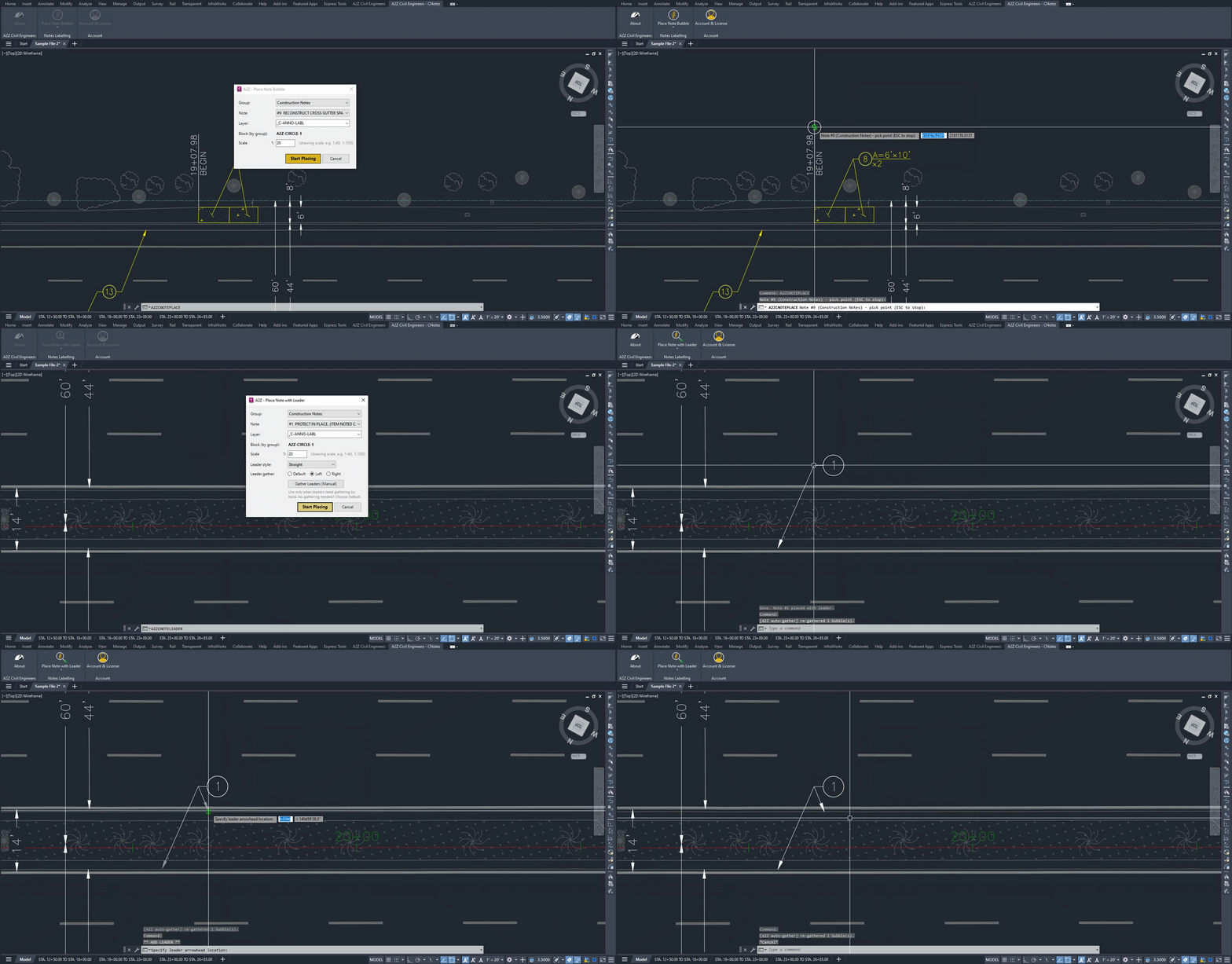
-
 3
3
Renumber in seconds, not hours
Bubble 3 becomes 4? Type it once and apply it to every bubble in the drawing — model space and every layout. Queue up several changes, reorder them, undo if you get it wrong.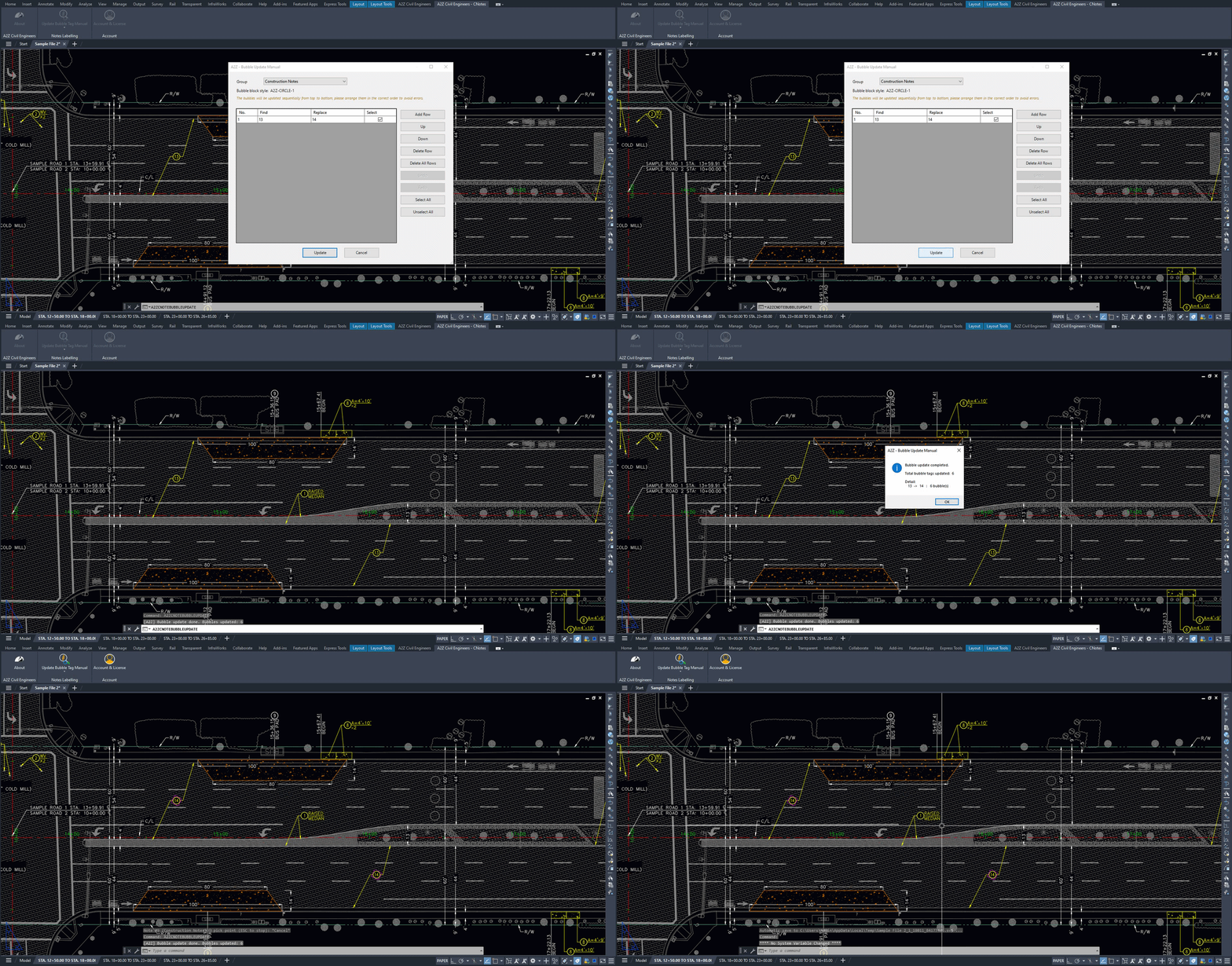
-
 4
4
Build the notes table automatically
Insert a construction notes table for every category or just one. Update it later and it stays in step with the bubbles you actually placed.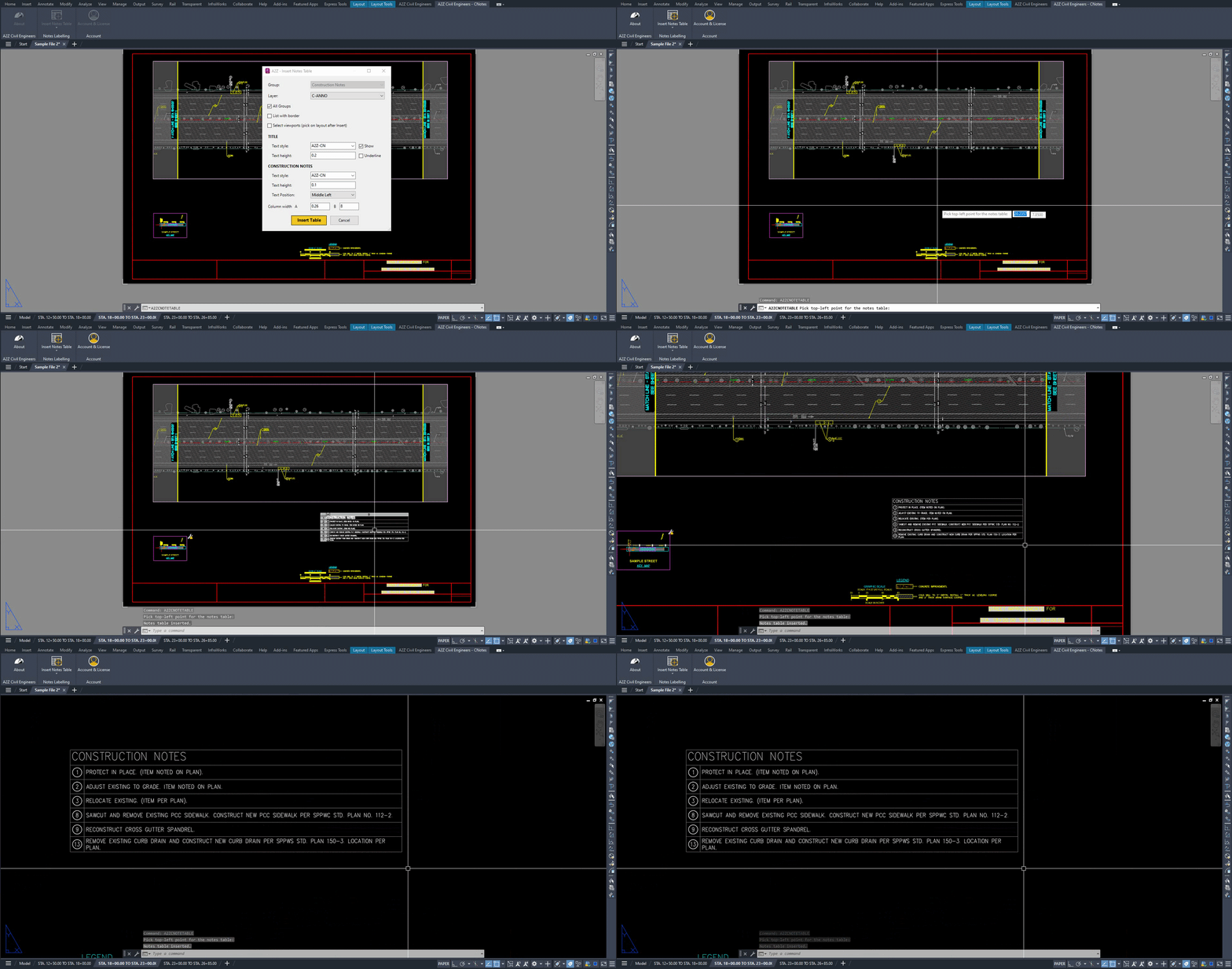
Specification
-

Compatible with AutoCAD & Civil 3D: 2020–2027
-
Construction Note Groups: Multiple groups, each with its own bubble style
-
Bubble Styles: 11 customizable block styles
-
Leader Styles: Multileader or Bubble Only
-
Notes Table: Display all groups or a single group
-
Renumbering: Easy find & replace with Undo and Redo support
-
Import Formats: CSV, TXT, CNM
-
Export Formats: CNM, CNB, CSV, TXT
-
Bubble & Leader Scaling: Easily adjust to match your drawing scale
-
Activation: Offline activation — never phones home
-
Installation: Simple step-by-step installation in just a few clicks
-
License: Free 2-Year License (free forever; the 2-year mark is just a renewal point)
How to get it
-
Step 1Download A2Z Civil Engineers – CNotes (Windows)
Download and install
Close AutoCAD/Civil3D first. The installer does not need administrator rights.
Since this is a recent public release, Windows may show a “Windows protected your PC” screen. Click More info → Run anyway. For transparency, you can review the installer’s VirusTotal scan report before you install. If your antivirus blocks or quarantines the file, please don’t disable it. Just email us at contact@a2zce.com and we’ll help.

-
Step 2
Copy your Request Code
Open AutoCAD/Civil3D. Go to the A2Z Civil Engineers – CNotes ribbon tab, click Account & License, then click Copy.
Your Request Code is a one-way code generated from your computer. It does not contain and cannot reveal your name, your files, your location, or any personal data. It ties your licence to one computer — nothing else. -
Step 3
Register
Paste the Request Code into the form below along with your work email. We’ll email your Activation Code back.
-
Step 4
Activate
Paste the Activation Code into the same Account & License window and click Activate. Done.
Download manual



REGISTER
Get your Activation Code
Frequently Asked Questions
-
1. Is it really free?
Yes. No cost, no trial period, no upsell inside the tool.
-
2. Why do you need my Request Code?
Each licence works on one computer, and the Request Code tells us which one. It’s a one-way hash — it can’t be reversed, and it reveals nothing about you, your files, or your machine.
-
3. Why can't I register with Gmail?
We issue this tool to working civil engineers and surveyors. A company email address is how we confirm that.
-
4. What if I change computers?
Register again with the new Request Code and we’ll issue a new Activation Code.
-
5. What happens after two years?
Register again for a free renewal.
-
6. Do I need an internet connection to use it?
No. Activation is offline. Once activated, the tool never phones home.
-
7. Can I share my Activation Code with a colleague?
It won’t work — each code is tied to one computer. Ask them to register. It’s free.
-
8. Is the installer safe?
Yes. The installer only copies the add-in into your Autodesk plug-ins folder. It doesn’t need admin rights, doesn’t install services or startup items, and the add-in never connects to the internet. Because the tool is new and not yet widely downloaded, a few antivirus engines may flag it using generic machine-learning rules. You can review the full VirusTotal scan report yourself.
Who made this
A2Z Civil Engineers is a civil design and drafting company headquartered in Ho Chi Minh City, Vietnam, working with engineering and surveying firms around the world. From public works, land development and grading to stormwater, survey drafting and 3D modeling, our team knows the everyday grind of production work firsthand.
This tool started as something we needed ourselves. We built it to cut out repetitive tasks, save time and help our drafters work more efficiently. It worked so well for us that we decided to share it with the wider civil design and drafting community.